01
Choose your camera
Start OBS Virtual Camera, then select it in AVEB and start merging.
 Audio + video
AVEB lets you share an OBS Virtual Camera picture and your desktop audio together in a Discord application-window stream.
Audio-Video Easy Bridge (for streaming on voice chats ;])
Share the AVEB application window in Discord, with application audio enabled.
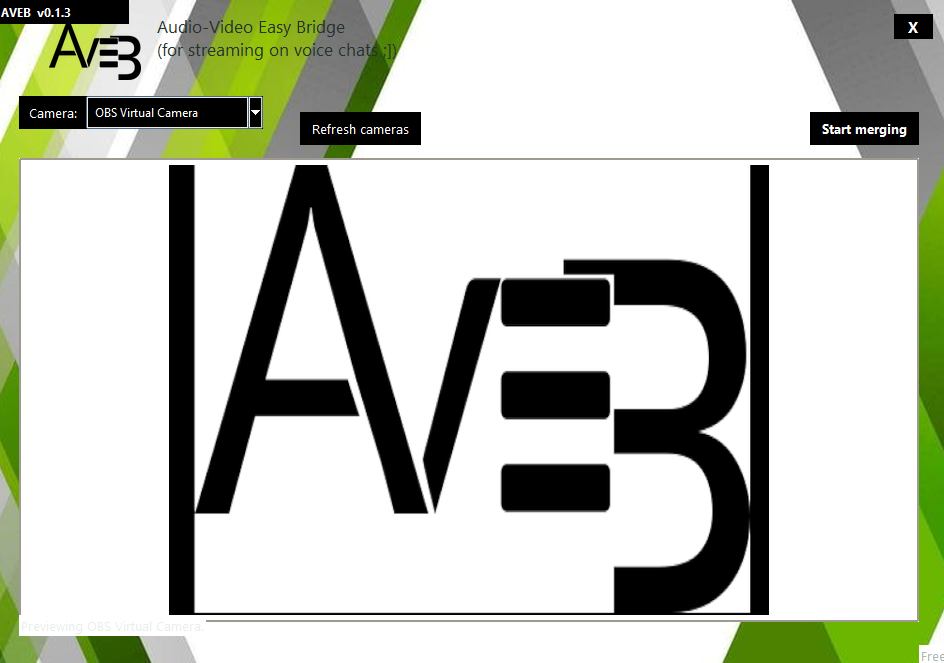
AVEB brings the selected camera image and desktop playback audio into one place for Discord to capture.
Start OBS Virtual Camera, then select it in AVEB and start merging.
In Discord, share the AVEB application window and turn on application audio.
With the AVEB window active, press Space to start the audio relay to VB-CABLE.
AVEB is a bridge—not a new combined webcam or microphone. Audio is routed to VB-CABLE for Discord's application-audio capture.
Download the AVEB installer directly. The download starts without opening the GitHub release page.
Your download should start shortly. If it doesn't, try the download again below.